Orders & shipping labels
See every order from your sites, mark it fulfilled with a tracking number, or buy a discounted shipping label in one click.
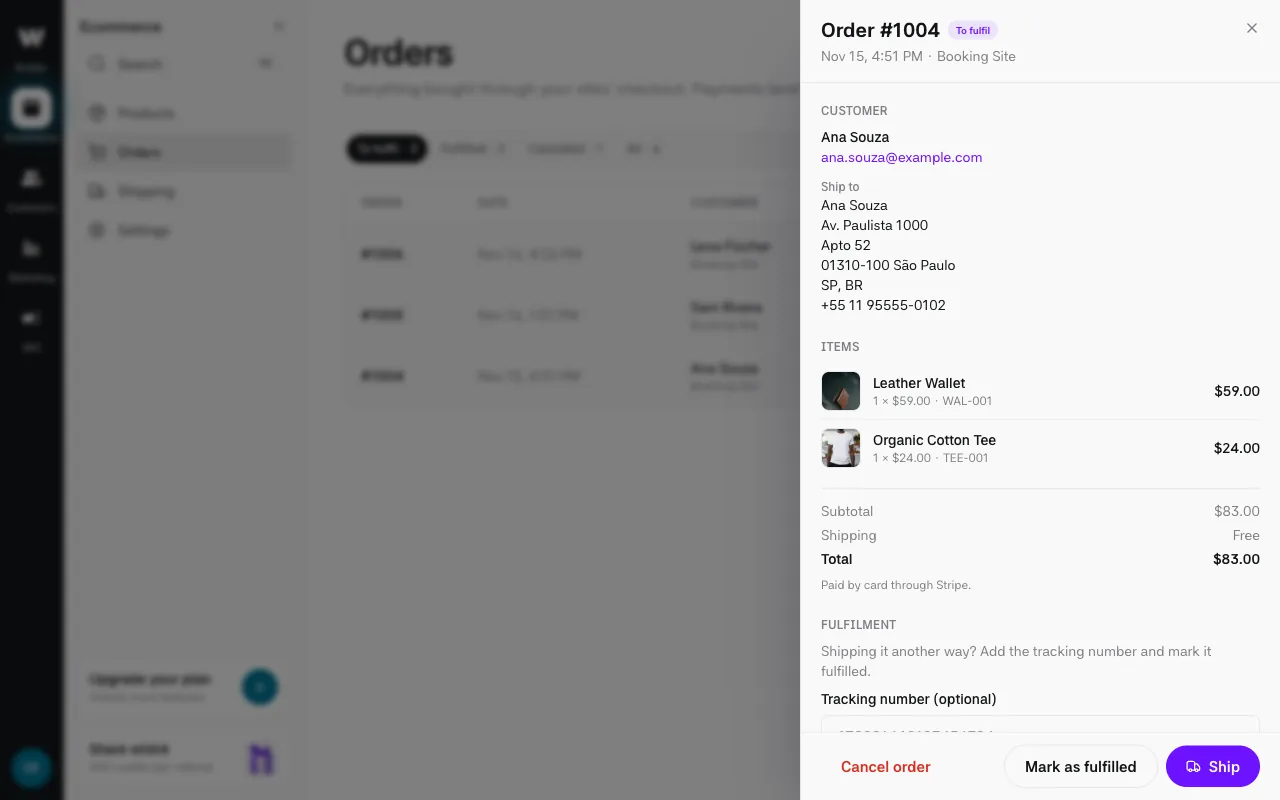
Ecommerce → Orders lists everything bought through your sites' checkout. To fulfil is your working list: paid orders that haven't shipped yet. Click an order to open it.
Import from Shopify
Moving from Shopify? Click Import orders and choose your orders export (Shopify → Orders → Export → All orders, as CSV). Orders keep their Shopify number; paid ones that haven't shipped land in To fulfil, and each customer gets the order in their history. Imported orders are history only — no stock is taken, no emails go out and no automations run — and importing the same file again skips what's already here.
Fulfil an order
- Ship — buy a shipping label right here (below).
- Mark as fulfilled — shipping it another way? Add the tracking number (optional) and mark it fulfilled.
- Cancel order — moves it to Cancelled.
Buy a shipping label
Check the ship-from address (saved for next time — carriers need a phone and an email) and the package size and weight.
Live USPS, UPS and FedEx rates appear for this parcel. Pick one.
It's charged to the payment card in Billing. The order is marked fulfilled with its tracking number, and you can print the label straight away.
Orders with Productifi supplements: Productifi makes and ships those items separately, so they aren't in your parcel.
Unpaid checkouts
If a shopper pays but closes the tab before reaching your thank-you page, wish4 still confirms the order with Stripe. A checkout that isn't paid within two days counts as abandoned — it shows on the shopper's profile in Customers, where an automation can send a reminder.